
If your Shark robot vacuum is not charging, the problem is often a simple connection issue or a need for a reset. This guide provides a clear, step-by-step troubleshooting process to get your vacuum back to cleaning. You’ll learn how to check the power source, clean critical parts, perform resets, and identify when to contact support.
Contents
- 1 Key Takeaways
- 2 Troubleshoot Your Shark Robot Vacuum Not Charging
- 3 Step 1: Perform the Initial Power Check
- 4 Step 2: Clean the Charging Contacts
- 5 Step 3: Ensure Proper Docking Alignment
- 6 Step 4: Perform a Soft Reset on Your Robot
- 7 Step 5: Decipher the Indicator Lights
- 8 Step 6: Evaluate the Battery Health
- 9 Step 7: Advanced Troubleshooting and Support
- 10 Conclusion: Get Back to Hands-Free Cleaning
- 11 Author
Key Takeaways
- Check the Basics First: Always start by verifying the wall outlet, power cord, and ensuring the robot is properly seated on the dock.
- Clean the Charging Contacts: Dirt on the metal contacts of the vacuum or dock is a leading cause of charging failure.
- Perform a Soft Reset: A simple power cycle can resolve many electronic glitches preventing charging.
- Inspect the Battery: Over time, rechargeable batteries lose capacity and may need replacement, especially after 2-3 years.
- Mind the Environment: Ensure the dock is on a hard, level surface and free from bright, direct light that can interfere with sensors.
- Consult Error Codes: Your robot’s indicator lights often flash specific patterns that provide clues to the specific problem.
- Know When to Call Support: If all troubleshooting fails, Shark’s customer service can help with warranty claims or advanced diagnostics.
Troubleshoot Your Shark Robot Vacuum Not Charging
There’s nothing more frustrating than sending your little robotic helper back to its dock, only to find it lifeless and out of power an hour later. A Shark robot vacuum not charging can bring your automated cleaning to a sudden halt. But don’t worry! Most charging problems have simple fixes you can do yourself.
This guide will walk you through every step. We’ll start with the easiest solutions and move to more advanced checks. You’ll learn how to clean key parts, perform resets, and understand what your vacuum’s lights are trying to tell you. Let’s get your Shark robot vacuum charging again.
Step 1: Perform the Initial Power Check
Before we dive deep, let’s eliminate the most common and simple causes. This step is quick and often solves the problem.
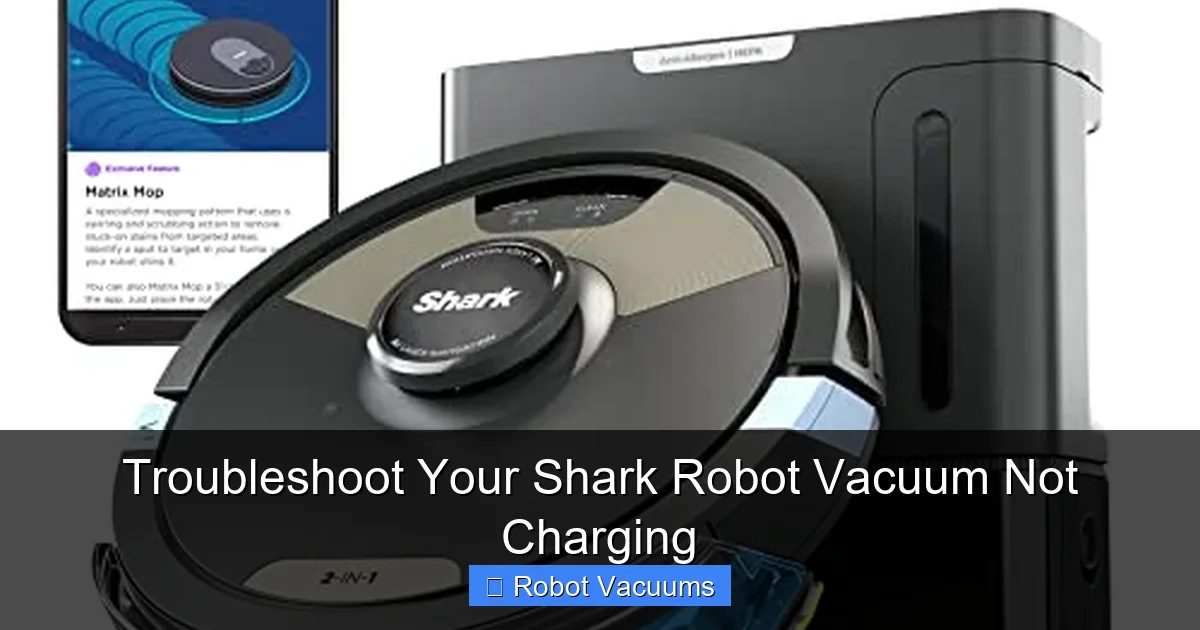
Visual guide about Troubleshoot Your Shark Robot Vacuum Not Charging
Image source: m.media-amazon.com
Verify the Power Source
First, check if the charging dock is getting power. Unplug the dock’s power adapter from the wall outlet. Now, plug a different device into that same outlet, like a lamp or phone charger. Does it work? If not, you’ve found the issue. Try a different, known-good outlet.
Inspect the Power Cord and Adapter
Look closely at the power cord running from the wall to the dock. Check for any cuts, kinks, or chew marks (pets love cords!). Ensure the adapter is firmly plugged into both the outlet and the back of the charging dock. A loose connection here is a frequent culprit.
Check the Dock Placement
Your Shark robot needs to find its home. Make sure the dock is on a hard, level surface against a wall. Move it at least 3 feet away from stairs and clear of clutter on both sides. The robot’s sensors need a clear path.
Step 2: Clean the Charging Contacts
This is the single most effective fix for a Shark robot vacuum not charging. Dirt builds up on the metal contacts, creating a barrier that stops electricity from flowing.

Visual guide about Troubleshoot Your Shark Robot Vacuum Not Charging
Image source: cleanersadvisor.com
Locate and Clean the Dock Contacts
Unplug the dock. Look for two small metal plates or pins on the front facing piece. Dampen a cotton swab with a little rubbing alcohol (isopropyl alcohol). Gently scrub these contacts until they shine. Let them dry completely.
Locate and Clean the Robot Contacts
Flip your Shark robot vacuum over. On its backside, you’ll find two matching metal contacts. Clean these with the same alcohol-dampened cotton swab. Be gentle but thorough. A pencil eraser can also be used to gently rub off stubborn grime.
Pro Tip: Make this part of your monthly maintenance routine to prevent future charging issues.
Step 3: Ensure Proper Docking Alignment
Sometimes the robot is on the dock, but not quite on the dock correctly.
Visual guide about Troubleshoot Your Shark Robot Vacuum Not Charging
Image source: purehealthy.co
Manually Re-Seat the Vacuum
Pick up your robot and place it directly onto the dock. Listen for a click or beep. Watch the indicator lights. They should typically pulse or light up to show charging has begun. If it starts charging now, the issue was alignment.
Clean the Dock and Robot Sensors
The robot uses infrared sensors to find the dock. Wipe the sensor windows on the front of the robot and on the dock with a clean, dry microfiber cloth. Dust or smudges can blind your robot.
Check for Environmental Interference
Bright sunlight or strong reflections can confuse the sensors. Try moving the dock to a slightly different location, away from direct sun or highly reflective floors.
Step 4: Perform a Soft Reset on Your Robot
Like any computer, your Shark robot can get stuck in a software glitch. A reset clears its memory and often fixes odd behavior.
How to Perform a Soft Reset
First, place the robot on the dock. Turn the power switch on the side or bottom of the robot to the “OFF” position. Wait for 30 seconds. Now, turn the switch back to “ON.” You should hear a startup sound. The robot may try to reconnect to the dock. Leave it for an hour to see if it charges.
Perform a Hard Reset (If Applicable)
For more stubborn issues, a hard reset may be needed. Check your manual. This often involves holding down specific buttons for 10-20 seconds until lights flash. This will often clear Wi-Fi settings and error codes.
Step 5: Decipher the Indicator Lights
Your Shark robot vacuum is talking to you through its lights. Here’s a basic translation guide.
Solid Red Light: Usually means the battery is critically low. It should turn to a pulsing or solid blue/white when charging begins.
Flashing Red Light: This often indicates an error. Count the flashes. Two flashes might mean a brush jam. Three flashes could be a wheel error. Consult your specific model’s manual for the exact code.
No Lights At All: This could mean no power is reaching the robot. Go back to Step 1 and check your outlet, cord, and dock power.
Lights On But Not Charging: If lights are on but the battery percentage doesn’t increase, the battery itself might be the problem.
Step 6: Evaluate the Battery Health
Rechargeable batteries don’t last forever. After 2-3 years of regular use, they can wear out.
Signs of a Failing Battery
- Run time is much shorter than it used to be.
- The robot dies randomly, even with a “full” charge.
- It refuses to hold a charge overnight.
How to Test and Replace the Battery
If you suspect the battery, you can order an official replacement from Shark. Replacement is usually simple. Turn the robot off, remove a few screws on the bottom, disconnect the old battery, and connect the new one. Always use a Shark-approved battery for safety.
Step 7: Advanced Troubleshooting and Support
If you’ve tried everything and your Shark robot vacuum is still not charging, it’s time to look deeper.
Check for Physical Obstructions or Damage
Inspect the wheels and brushes. Make sure they spin freely. A jammed brush can sometimes prevent a proper docking sequence. Look for any obvious physical damage to the robot or dock.
Consider a Factory Reset
This will erase all schedules and maps. It’s a last-resort software fix. The method varies by model, so please refer to your manual or Shark’s website for instructions.
Contact Shark Customer Support
Shark has excellent customer service. Have your model number (found on the bottom sticker) ready. They can run through advanced diagnostics, honor your warranty, or advise if a repair is needed.
Conclusion: Get Back to Hands-Free Cleaning
A Shark robot vacuum not charging is a common but usually solvable problem. Start with the simple fixes: check the power, clean the contacts, and reseat the robot. Most of the time, this is all it takes. If not, use the indicator lights as your guide and don’t be afraid to try a reset. Remember, battery replacement is a normal part of ownership after a few years.
By following this structured guide, you’ve likely saved yourself a costly repair bill or a frustrating service call. With a little maintenance and these troubleshooting steps, your Shark robot vacuum will be back to keeping your floors clean without you lifting a finger.
🎥 Related Video: How to resolve charging issues with your Shark Robot vacuum
📺 Shark Home
A multi-step process to guide you through how to ensure your Shark Robot vacuum is charging correctly. Don’t forget to subscribe!