
If your robot vacuum is not moving, it’s often a simple fix. This guide walks you through a step-by-step diagnostic process, from checking for physical obstructions and cleaning the wheels to resetting the device and inspecting the battery. You’ll learn how to identify and solve the most common problems to get your automated helper back on track quickly.
Contents
- 1 Key Takeaways
- 2 Troubleshooting Why Your Robot Vacuum Is Not Moving
- 3 Step 1: Perform a Basic Power Reset
- 4 Step 2: Check for Physical Obstructions
- 5 Step 3: Examine and Clean All Sensors
- 6 Step 4: Investigate Battery and Charging Issues
- 7 Step 5: Listen for Error Codes and Check the App
- 8 Step 6: Advanced Troubleshooting and Resets
- 9 Step 7: When to Seek Professional Help
- 10 Conclusion: Getting Back to Automated Cleaning
- 11 Author
Key Takeaways
- Start Simple: The most common reasons a robot vacuum is not moving are physical blockages, dirty sensors, or a depleted battery.
- Power Cycle First: A simple reset (turning it off and on) can resolve many temporary electronic glitches causing movement issues.
- Inspect the Wheels & Brushes: Hair, string, and debris tightly wound around the axles or brush rolls can physically lock the drive system.
- Clean All Sensors: Dirt on cliff sensors, bumper sensors, or LIDAR windows can cause the vacuum to think it’s stuck or about to fall.
- Check the Battery Health: An old or faulty battery may not hold enough charge to power the motors, even if it seems to charge.
- Consult the Manual & App: Error codes or notifications in the companion app provide specific clues about what’s wrong.
- Know When to Call Pros: If basic troubleshooting fails, the issue may be internal (like a failed motor or mainboard) requiring professional repair.
Troubleshooting Why Your Robot Vacuum Is Not Moving
There’s nothing more frustrating than setting your robot vacuum to clean and finding it stranded in the middle of the floor. A robot vacuum that is not moving turns your high-tech helper into a very expensive paperweight. But don’t worry! In most cases, you can fix this problem yourself with some basic troubleshooting.
This guide will walk you through a logical, step-by-step process. We’ll start with the simplest fixes and move to more complex checks. You’ll learn how to diagnose common issues. Let’s get your little cleaner rolling again.
Step 1: Perform a Basic Power Reset
Before you dive into taking things apart, always try this first. Like any computer, your robot vacuum can experience temporary software glitches. A power cycle clears its memory and restarts all systems.
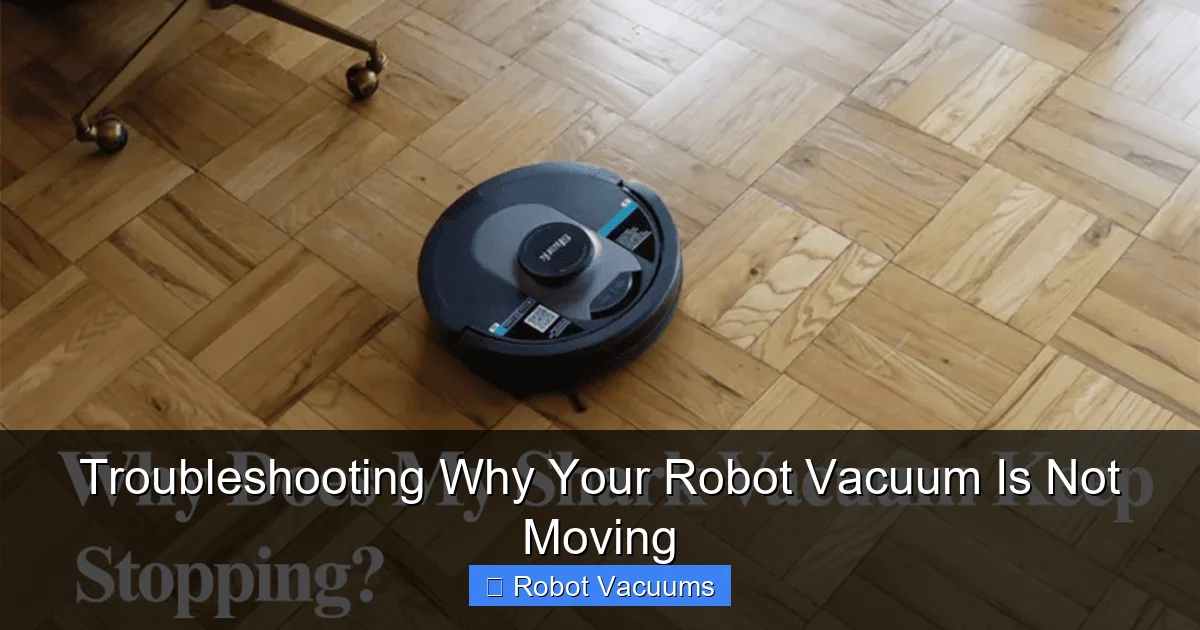
Visual guide about Troubleshooting Why Your Robot Vacuum Is Not Moving
Image source: smarthomeways.com
How to Power Cycle Your Vacuum
First, pick up the robot and place it on its charging dock. Ensure the dock is plugged in. Let it sit and charge for at least 10 minutes. This ensures it has power for the reset process.
Next, locate the power button. It’s often on the side or top. Press and hold this button for 10-15 seconds until all lights turn off. Wait for 30 seconds. Then, press the power button once to turn it back on. You should hear a startup sound and see lights.
Finally, try to start a cleaning cycle from the button on the robot or via its app. If the robot vacuum was frozen due to a minor error, this often gets it moving again.
Step 2: Check for Physical Obstructions
Robot vacuums are low to the ground. They can get stuck on everyday items. A physical blockage is a top reason your robot vacuum is not moving.

Visual guide about Troubleshooting Why Your Robot Vacuum Is Not Moving
Image source: smarthomeways.com
Clear the Path Around the Vacuum
Look at the immediate area. Move any small toys, shoes, cables, or thick rug tassels away from the robot. These items can jam under the bumper or between the wheels.
Inspect and Clean the Wheels
Turn the vacuum over. Examine the main drive wheels. Can you spin them freely with your fingers? If not, they are likely jammed.
Hair and string love to wrap around wheel axles. Use tweezers or small scissors to carefully cut and remove any wound debris. Wipe the wheels with a dry cloth. Make sure the wheels can spring in and out, as this helps with climbing.
Inspect and Clean the Brush Rolls
Remove the main brush roll (usually by flipping clips on the underside). Also check the side brush. Cut away any hair, thread, or carpet fibers tangled around them. A severely jammed brush roll can sometimes prevent movement.
Step 3: Examine and Clean All Sensors
Your robot vacuum “sees” the world with sensors. Dirty sensors give it false information. This can make it think it’s trapped or about to fall, so it refuses to move.
Visual guide about Troubleshooting Why Your Robot Vacuum Is Not Moving
Image source: smarthomeways.com
Locate and Wipe the Cliff Sensors
On the underside, near each corner, you’ll find small, usually black, window-like sensors. These are cliff sensors. They shoot an infrared beam to detect drops like stairs. Wipe these with a soft, dry microfiber cloth. Do not use liquid cleaners.
Clean the Bumper Sensor
The front bumper should move in and out when you press it. Gently press it a few times. Listen for a soft click. Wipe the entire bumper area to remove dust. Also, clean any sensors behind the bumper slit.
Clean the LIDAR or Camera Window (If Applicable)
If your model has a rotating LIDAR tower on top or a camera lens, this is its primary navigation tool. Gently wipe this dome or lens with a dry cloth. Even a single fingerprint can disrupt its map.
Step 4: Investigate Battery and Charging Issues
A weak or faulty battery may provide enough power to light up but not enough to run the demanding drive motors. This is a common culprit when a robot vacuum is not moving.
Check the Charging Contacts
Look at the metal contacts on the robot and the charging dock. Are they black or corroded? Gently clean them with a cotton swab dipped in a tiny amount of rubbing alcohol. Let them dry completely.
Test the Battery
Place the robot on the dock. Does it indicate it’s charging? Let it charge uninterrupted for 3-4 hours. Then, try to start it right off the dock. If it moves for a second and dies, the battery may be old and unable to hold a charge.
Some apps show battery health percentage. A battery below 70% health may cause movement issues. Replacement batteries are often available online for popular models.
Step 5: Listen for Error Codes and Check the App
Your robot is trying to tell you what’s wrong. Pay attention to its lights and sounds.
Decode Audible Alerts and Lights
Consult your user manual. A series of beeps or a specific blinking light pattern usually means something specific. For example, two beeps might mean “brush stuck,” while a red blinking light might mean “wheel error.”
Use the Companion App
Open the app connected to your vacuum. Look for any notifications or error messages. The app might say “Left wheel stuck” or “Cliff sensor error.” This gives you a direct target for your troubleshooting.
Step 6: Advanced Troubleshooting and Resets
If the basic steps haven’t worked, it’s time for deeper actions.
Perform a Factory Reset
Warning: This will erase your maps and schedules. You’ll have to set up the robot like new. The method varies by brand but often involves holding specific buttons for 10-20 seconds. This can clear persistent software bugs.
Check for Mechanical Failures
With the power off, manually try to spin each wheel. They should spin smoothly with little resistance. If a wheel is grinding, stiff, or loose, its internal motor or gearbox may be broken. Listen for unusual sounds when you try to start it.
Step 7: When to Seek Professional Help
You’ve tried everything, and your robot vacuum is still not moving. It might be time to call in the experts.
Consider professional repair if: The robot doesn’t power on at all, even after trying a different outlet and charger. You smell burning or see visible damage inside. The app shows a persistent, unfixable error like “Mainboard failure.” The vacuum is still under warranty—contact the manufacturer first.
For out-of-warranty models, search for reputable small appliance repair shops. Sometimes, the cost of repair is close to a new model. You’ll have to decide if it’s worth it.
Conclusion: Getting Back to Automated Cleaning
A robot vacuum that is not moving is a common but usually solvable problem. The key is to follow a logical process. Start with a simple reset and physical inspection. Move on to cleaning sensors and checking the battery. Use the tools your vacuum gives you, like error sounds and the app.
Most of the time, the issue is something simple you can fix in under 10 minutes. Regular maintenance, like cleaning wheels and sensors weekly, can prevent many of these problems. Now you have the knowledge to diagnose and fix the issue. Get that little helper back to work and enjoy your clean floors once more.
🎥 Related Video: Roomba Not Moving Forward/Normally | Troubleshooting
📺 David in France
If your Roomba is moving abnormally like not moving forward or not going straight, this troubleshooting guide will help you fix it.