Wondering if you can use lens cleaning wipes on a laptop screen safely? This guide explains when it’s safe, what to check on the label, and how to clean your screen step by step without causing damage. Learn the right products, techniques, and mistakes to avoid so your laptop screen stays clear, streak-free, and protected.
Contents
- 1 Key Takeaways
- 2 Can You Use Lens Cleaning Wipes on a Laptop Screen Safely?
- 3 Understanding Your Laptop Screen and Its Coating
- 4 Are Lens Cleaning Wipes Safe for Laptop Screens?
- 5 What You Need Before You Start Cleaning
- 6 Step-by-Step: How to Use Lens Cleaning Wipes on a Laptop Screen Safely
- 6.1 Step 1: Power Down and Unplug
- 6.2 Step 2: Let the Screen Cool
- 6.3 Step 3: Remove Loose Dust First
- 6.4 Step 4: Open a Single Lens Cleaning Wipe
- 6.5 Step 5: Wipe Gently in One Direction
- 6.6 Step 6: Focus on Smudges and Fingerprints
- 6.7 Step 7: Dry and Buff with a Microfiber Cloth
- 6.8 Step 8: Let the Screen Air Dry Completely
- 7 How Often Should You Use Lens Cleaning Wipes on a Laptop Screen?
- 8 Common Mistakes to Avoid
- 9 Troubleshooting: When Cleaning Does Not Go as Planned
- 10 Extra Tips to Keep Your Laptop Screen Clean Longer
- 11 Conclusion: Using Lens Cleaning Wipes on a Laptop Screen Safely
- 12 Author
Key Takeaways
- Point 1: You can use lens cleaning wipes on a laptop screen safely if they are alcohol-free and designed for coated or electronic displays.
- Point 2: Always check the label for harsh chemicals like ammonia or high alcohol content, which can damage anti-glare and protective coatings.
- Point 3: Turn off and unplug your laptop before cleaning to avoid streaks, smears, and potential electrical issues.
- Point 4: Use gentle pressure, wipe in one direction, and never press hard on the screen to prevent pixel damage.
- Point 5: Never spray liquid directly on the screen; use pre-moistened wipes or a cloth lightly dampened with approved cleaner.
- Point 6: For stubborn spots, let the wipe sit on the area for a few seconds instead of scrubbing.
- Point 7: Regular, gentle cleaning extends the life of your laptop screen and keeps visuals sharp and easy on your eyes.
Can You Use Lens Cleaning Wipes on a Laptop Screen Safely?
If you use your laptop every day, your screen probably gets dusty, smudged, and covered with fingerprints. At some point, you may grab whatever is nearby and think, “Can you use lens cleaning wipes on a laptop screen safely?” The short answer is: yes, sometimes – but only if the wipes are the right kind and you use them the right way.
This how-to guide will walk you through everything you need to know. You will learn which lens wipes are safe, which ones to avoid, and how to clean your laptop screen step by step. You will also see how to handle stubborn smudges, what to do if you make a mistake, and how to keep your display clean longer.
By the end, you will know exactly when you can use lens cleaning wipes on a laptop screen safely, and how to protect your screen from scratches, streaks, and long-term damage.
Understanding Your Laptop Screen and Its Coating
Before you decide if you can use lens cleaning wipes on a laptop screen safely, it helps to know what you are actually cleaning. Modern laptop screens are more than just glass. They often have several thin, delicate layers on top.
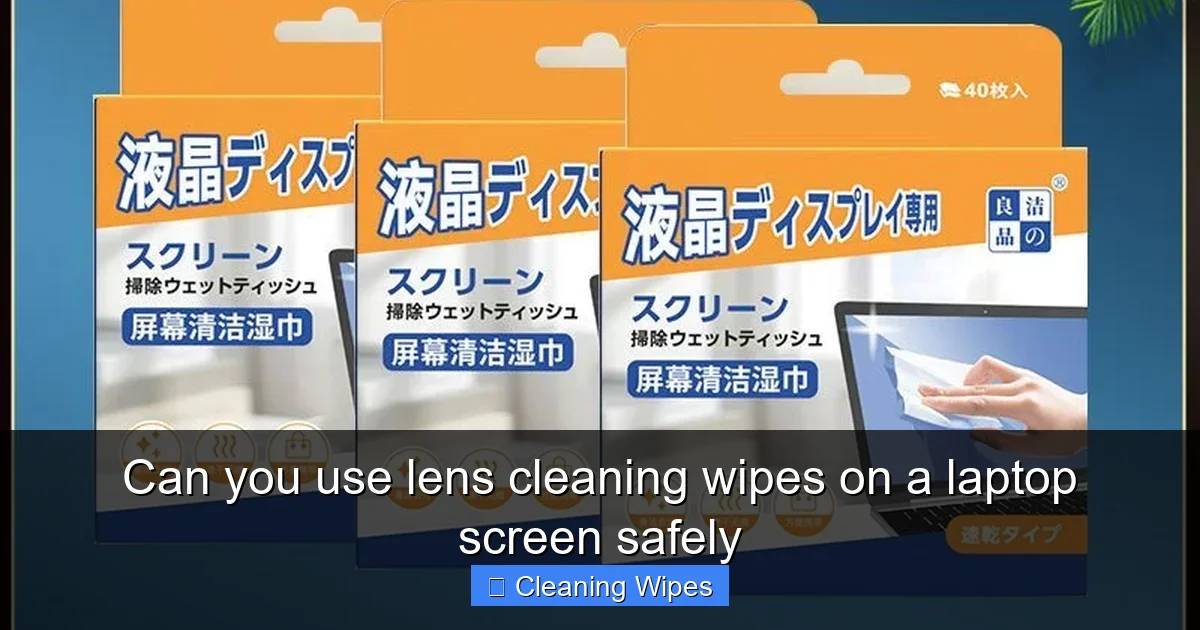
Visual guide about Can you use lens cleaning wipes on a laptop screen safely
Image source: down-ph.img.susercontent.com
Common Types of Laptop Screens
- Glossy screens: These look shiny and vibrant. They often show fingerprints and smudges easily.
- Matte or anti-glare screens: These cut down on reflections. They have a special coating that can be sensitive to harsh chemicals.
- Touchscreens: These have extra layers for touch input and sometimes extra coatings for fingerprints.
All of these screen types can be damaged if you use the wrong cleaning products. That is why you must be careful when you use lens cleaning wipes on a laptop screen.
Why Coatings Matter
Many laptop screens have an anti-reflective or oleophobic (fingerprint-resistant) coating. These coatings are thin. Strong chemicals can slowly break them down. Over time, the screen can look cloudy, patchy, or uneven.
This is one of the main reasons people ask if you can use lens cleaning wipes on a laptop screen safely. The safety depends on what is in the wipes and how often you use them.
Are Lens Cleaning Wipes Safe for Laptop Screens?
The phrase “lens cleaning wipes” can mean a lot of different products. Some are gentle and safe for delicate surfaces. Others are meant for tough glass and may be too strong for a laptop screen.
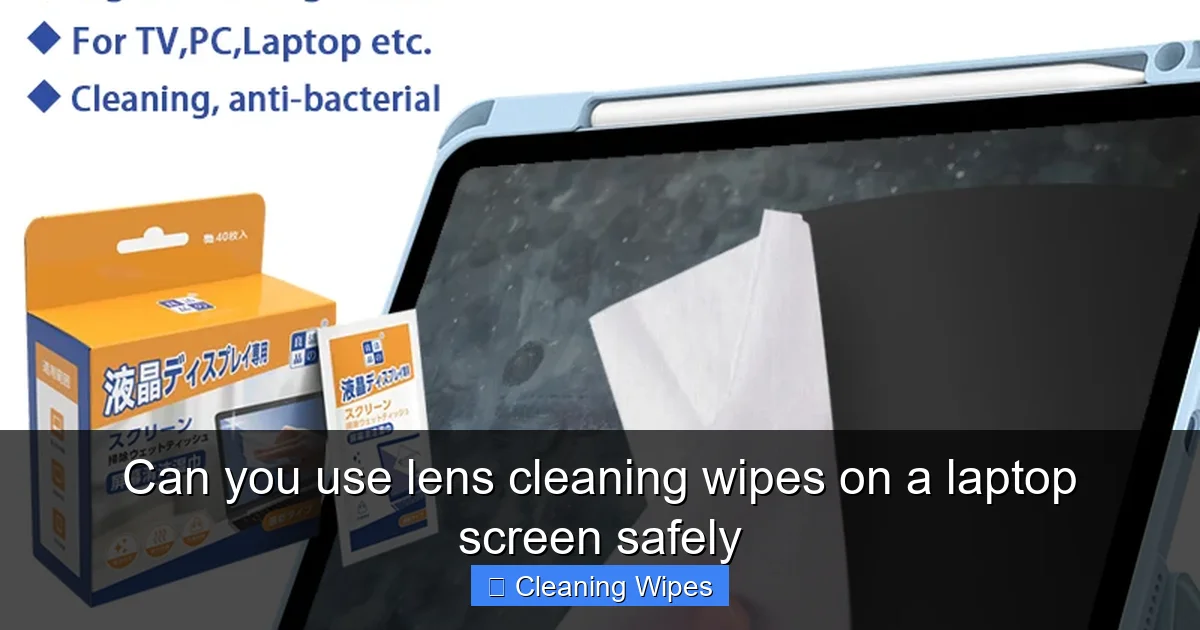
Visual guide about Can you use lens cleaning wipes on a laptop screen safely
Image source: down-th.img.susercontent.com
When Lens Cleaning Wipes Are Usually Safe
You can usually use lens cleaning wipes on a laptop screen safely if the wipes are:
- Alcohol-free or labeled as safe for coated or anti-reflective lenses.
- Designed for electronics or “screen-safe.”
- Marketed for camera lenses, eyeglasses, and coated optics, with no harsh chemicals listed.
Many modern lens wipes are made for sensitive, coated surfaces. These are often safe to use on a laptop screen as long as you follow gentle cleaning steps.
When Lens Cleaning Wipes May Be Risky
You should be more careful if the lens wipes:
- Contain high amounts of isopropyl alcohol (often 70% or more).
- List ammonia, acetone, or strong solvents on the label.
- Are designed for household glass, car windows, or heavy-duty cleaning.
These types of wipes can slowly damage screen coatings if you use them often. Using them once or twice in an emergency might not destroy your screen, but repeated use is not a good idea.
How to Read the Label
To decide if you can use lens cleaning wipes on a laptop screen safely, read the packaging carefully. Look for:
- “Safe for coated lenses” or “safe for anti-reflective coatings.”
- “Streak-free for screens” or “for electronics and optics.”
- “Alcohol-free” or “no ammonia.”
If the label does not say anything about coatings or screens, be cautious. When in doubt, use a dedicated screen cleaner instead.
What You Need Before You Start Cleaning
Once you know you can use lens cleaning wipes on a laptop screen safely, gather a few simple supplies. Having the right tools will make cleaning quick and easy.
Recommended Supplies
- Safe lens cleaning wipes: Alcohol-free or screen-safe wipes designed for coated lenses.
- Microfiber cloth: Soft, lint-free cloth for final buffing and drying.
- Compressed air (optional): For blowing off loose dust before wiping.
- Clean, dry hands: To avoid adding new oils or dirt to the screen.
What to Avoid
- Paper towels or tissues: These can leave lint and may scratch the screen.
- Kitchen cleaners or window sprays: They often contain ammonia or other strong chemicals.
- Old, rough cloths: Anything abrasive can scratch or dull the surface.
Step-by-Step: How to Use Lens Cleaning Wipes on a Laptop Screen Safely
Now let’s walk through the exact steps so you can use lens cleaning wipes on a laptop screen safely and effectively.
Step 1: Power Down and Unplug
Always start by turning off your laptop. Unplug it from the charger as well.
- A dark screen makes dust, smudges, and streaks easier to see.
- It also reduces the risk of moisture getting into active electronics.
If your laptop has a removable battery, you can remove it for extra safety, but this is optional for most modern models.
Step 2: Let the Screen Cool
If you have been using your laptop, the screen may be warm. Let it cool for a few minutes before you use lens cleaning wipes on the laptop screen.
- Cool glass or plastic is less likely to streak.
- Heat can sometimes cause cleaning fluid to evaporate too fast, leaving marks.
Step 3: Remove Loose Dust First
Before you touch the screen with a wipe, remove loose dust and debris.
- Hold the laptop upright or at a slight angle.
- Use short bursts of compressed air to blow away dust.
- Or gently wipe with a dry, clean microfiber cloth using almost no pressure.
This step helps you use lens cleaning wipes on a laptop screen safely because it reduces the risk of rubbing tiny particles into the surface.
Step 4: Open a Single Lens Cleaning Wipe
Open one wipe at a time. Do not let it dry out before you start.
- Make sure the wipe is slightly moist, not soaking wet.
- If it is dripping, gently squeeze or shake off excess moisture away from the laptop.
Too much liquid can run into the edges of the screen or into the keyboard, which is not safe.
Step 5: Wipe Gently in One Direction
Now you can use the lens cleaning wipe on the laptop screen.
- Start at the top of the screen and wipe downward in straight lines.
- Use light pressure. Do not press hard or scrub.
- Overlap your strokes slightly so you do not miss any areas.
Moving in one direction helps reduce streaks. It also makes it easier to see which areas are already clean.
Step 6: Focus on Smudges and Fingerprints
If you see stubborn spots, you can still use lens cleaning wipes on a laptop screen safely, but be patient.
- Place the wipe over the smudge and hold it there for a few seconds.
- Let the moisture loosen the dirt or oil.
- Then gently wipe in small circles or short strokes.
Avoid scrubbing. If one wipe becomes too dirty, switch to a fresh one instead of grinding dirt into the screen.
Step 7: Dry and Buff with a Microfiber Cloth
After you use lens cleaning wipes on a laptop screen, there may be a light film of moisture.
- Take a clean, dry microfiber cloth.
- Gently buff the screen using light, circular motions.
- Do not press hard. Let the cloth pick up any leftover moisture or streaks.
This final step leaves the screen clear, smooth, and streak-free.
Step 8: Let the Screen Air Dry Completely
Before you turn the laptop back on, give the screen a short time to dry.
- Wait a couple of minutes to be sure there is no moisture at the edges.
- Check the corners and bezel for any wet spots.
Once the screen is fully dry, you can power on your laptop and enjoy the clear view.
How Often Should You Use Lens Cleaning Wipes on a Laptop Screen?
Even if you can use lens cleaning wipes on a laptop screen safely, you should not overdo it.
Recommended Cleaning Frequency
- Light use: Clean every 1–2 weeks with a gentle wipe or microfiber cloth.
- Heavy use or shared laptops: Clean once or twice a week, especially if many people touch the screen.
- Quick dusting: Use a dry microfiber cloth between deep cleans.
Frequent, gentle cleaning is better than waiting until the screen is very dirty and then scrubbing hard.
Alternating with Other Methods
If you worry about long-term exposure to cleaning chemicals, you can alternate methods.
- Use lens cleaning wipes on the laptop screen once in a while for deep cleaning.
- On other days, use a dry microfiber cloth for light dusting.
- For touchscreens, you can also use a cloth slightly dampened with distilled water.
This balance keeps your screen clean while limiting chemical contact with the coating.
Common Mistakes to Avoid
Knowing what not to do is just as important as knowing how you can use lens cleaning wipes on a laptop screen safely. Here are some common mistakes to avoid.
Mistake 1: Spraying Liquid Directly on the Screen
Never spray any cleaner straight onto your laptop screen.
- Liquid can run down into the bezel or keyboard.
- Moisture inside the device can cause damage over time.
Always apply cleaner to a wipe or cloth first, then wipe the screen.
Mistake 2: Using Household Glass Cleaners
Products made for windows or mirrors often contain ammonia or other strong agents.
- These can damage anti-glare and anti-reflective coatings.
- They may also leave streaks or a hazy film.
Even if you think they work well on regular glass, they are not designed for laptop screens.
Mistake 3: Pressing Too Hard
Pressing firmly does not clean better. It only increases the risk of damage.
- Too much pressure can cause pressure marks or temporary discoloration.
- In extreme cases, it can damage pixels or the panel itself.
Gentle, repeated passes are safer and usually more effective.
Mistake 4: Using Dirty or Rough Cloths
Old T-shirts, paper towels, and rough rags can scratch the screen.
- They may also carry tiny bits of dirt or sand.
- Every wipe can leave more micro-scratches.
Always use clean, soft microfiber cloths made for screens or lenses.
Troubleshooting: When Cleaning Does Not Go as Planned
Sometimes, even when you try to use lens cleaning wipes on a laptop screen safely, things do not go perfectly. Here is how to fix common issues.
Problem: Streaks After Cleaning
If you see streaks:
- Buff the screen gently with a dry microfiber cloth.
- Use light, circular motions and avoid pressing hard.
- If streaks remain, lightly dampen a corner of the cloth with distilled water and wipe again.
Streaks often happen when the wipe is too wet or when the screen was warm during cleaning.
Problem: Cloudy or Hazy Areas
If a section of the screen looks cloudy:
- Check if it is just leftover residue by wiping gently with a clean, dry microfiber cloth.
- If the haze remains, it may be wear on the coating from past harsh cleaners.
Coating damage is usually permanent. In that case, avoid further chemicals and stick to very gentle dry cleaning. If the laptop is valuable, consider consulting a professional.
Problem: Moisture at the Edges
If you see moisture around the bezel:
- Immediately turn off the laptop if it is still on.
- Use a dry microfiber cloth to soak up any visible moisture.
- Leave the laptop open in a dry room for several hours before turning it back on.
Do not use a hair dryer or heat source. Let it air dry naturally.
Problem: Persistent Spots That Will Not Wipe Away
If some marks will not disappear even when you use lens cleaning wipes on the laptop screen:
- Make sure the spot is not on the inside of the screen (like dust under the panel).
- Check if it is a dead pixel or a small chip, which cleaning cannot fix.
- If it looks like a scratch or pixel issue, cleaning will not remove it.
For internal issues, only a repair shop or the manufacturer can help.
Extra Tips to Keep Your Laptop Screen Clean Longer
If you want to use lens cleaning wipes on a laptop screen safely but less often, change a few habits to keep the screen cleaner day to day.
Handle the Screen Carefully
- Avoid touching the screen when pointing; use the trackpad or mouse instead.
- Close the lid gently and avoid pressing on the top when it is shut.
- Keep pens, headphones, and other objects away from the keyboard area when closing the laptop.
Control Your Environment
- Avoid using your laptop in dusty or sandy areas when possible.
- Do not eat crumbly or greasy foods directly over the keyboard.
- Wash your hands before using the laptop, especially if you have used lotion or food oils.
Use a Screen Protector (Optional)
If you are very concerned about damage, you can add a screen protector.
- It creates a sacrificial layer that can be replaced if scratched.
- You can use lens cleaning wipes on the laptop screen protector more freely, as you are not touching the original coating.
Conclusion: Using Lens Cleaning Wipes on a Laptop Screen Safely
You now know that you can use lens cleaning wipes on a laptop screen safely, as long as you choose the right type and use gentle technique. The key is to pick wipes that are alcohol-free or designed for coated lenses and screens. Always avoid harsh chemicals, heavy pressure, and direct spraying.
By following the step-by-step process in this guide, you can keep your laptop display clear, bright, and free from smudges without damaging its delicate coatings. Use lens cleaning wipes on a laptop screen wisely, back them up with a good microfiber cloth, and treat your screen gently. Your eyes will thank you every time you open your laptop and see a clean, crisp display.