Wondering if you can use lens cleaning wipes on computer screens? This guide explains when it’s safe, what types of wipes to use, and how to clean your screen step by step. You’ll learn how to avoid streaks, scratches, and damage while keeping your monitor, laptop, or tablet crystal clear.
Contents
- 1 Key Takeaways
- 2 Can You Use Lens Cleaning Wipes on Computer Screen Safely?
- 3 Understanding Lens Cleaning Wipes and Computer Screens
- 4 When Is It Safe to Use Lens Cleaning Wipes on a Computer Screen?
- 5 How to Test a Lens Cleaning Wipe Before Using It Fully
- 6 Step-by-Step: How to Use Lens Cleaning Wipes on a Computer Screen Safely
- 7 Common Mistakes to Avoid When Using Lens Wipes on Screens
- 8 Alternatives to Lens Cleaning Wipes for Computer Screens
- 9 Troubleshooting: What If Something Goes Wrong?
- 10 How Often Should You Clean Your Computer Screen?
- 11 Best Practices to Keep Your Screen Cleaner for Longer
- 12 Conclusion: Can You Use Lens Cleaning Wipes on Computer Screen Safely?
- 13 Author
Key Takeaways
- Point 1: You can use lens cleaning wipes on computer screens if they are alcohol-free, ammonia-free, and designed for delicate surfaces.
- Point 2: Always turn off and unplug your device before cleaning to protect both the screen and internal parts.
- Point 3: Check the label: some lens wipes contain alcohol that may damage anti-glare or special coatings on modern screens.
- Point 4: Use gentle, circular motions and avoid pressing hard to prevent pressure spots or pixel damage.
- Point 5: Never use household cleaners, paper towels, or rough cloths on your screen, as they can scratch or strip coatings.
- Point 6: Test a new lens cleaning wipe on a small corner of the screen first if you’re unsure about compatibility.
- Point 7: Regular, gentle cleaning and good habits (like not touching the screen) will keep your computer screen clear and safe long term.
Can You Use Lens Cleaning Wipes on Computer Screen Safely?
Many people look at their dusty, fingerprint-covered monitor and wonder, “Can you use lens cleaning wipes on computer screen surfaces without damage?” The short answer is: sometimes yes, but only if you use the right kind of wipe and the right method.
In this guide, we will walk through when lens cleaning wipes are safe, when they are not, and how to use them the correct way. You will also learn how to read labels, what ingredients to avoid, and how to clean different types of screens, like laptops, desktop monitors, and all-in-one computers.
By the end, you will know exactly how to clean your screen with confidence and keep it looking new for as long as possible.
Understanding Lens Cleaning Wipes and Computer Screens
Before you decide if you can use lens cleaning wipes on computer screen surfaces, it helps to know what is in those wipes and how screens are built.
Visual guide about Can you use lens cleaning wipes on computer screen safely
Image source: thumbs.dreamstime.com
What Are Lens Cleaning Wipes?
Lens cleaning wipes are small, pre-moistened wipes made for glasses, camera lenses, and sometimes phone screens. They are usually lint-free and designed to leave a clear finish.
However, not all lens wipes are the same. Some are:
- Alcohol-based: These often contain isopropyl alcohol or ethanol.
- Ammonia-free but still strong: They may include other solvents.
- Alcohol-free and gentle: These are usually safer for coated screens.
This matters a lot when you ask, “Can you use lens cleaning wipes on computer screen safely?” because the ingredients can affect coatings on your monitor.
How Modern Computer Screens Are Built
Most modern computer screens have more than just glass or plastic. They often include:
- Anti-glare coatings to reduce reflections.
- Anti-fingerprint or oleophobic coatings to resist smudges.
- Protective layers over LCD or LED panels.
These thin layers can be damaged by harsh chemicals or rough materials. That is why it is important to know which lens wipes are safe and how to use them correctly.
When Is It Safe to Use Lens Cleaning Wipes on a Computer Screen?
The main question is: Can you use lens cleaning wipes on computer screen surfaces without damage? The answer depends on a few key factors.
Visual guide about Can you use lens cleaning wipes on computer screen safely
Image source: m.media-amazon.com
1. Check the Ingredients on the Label
Always read the label on the box or packet. Look for these points:
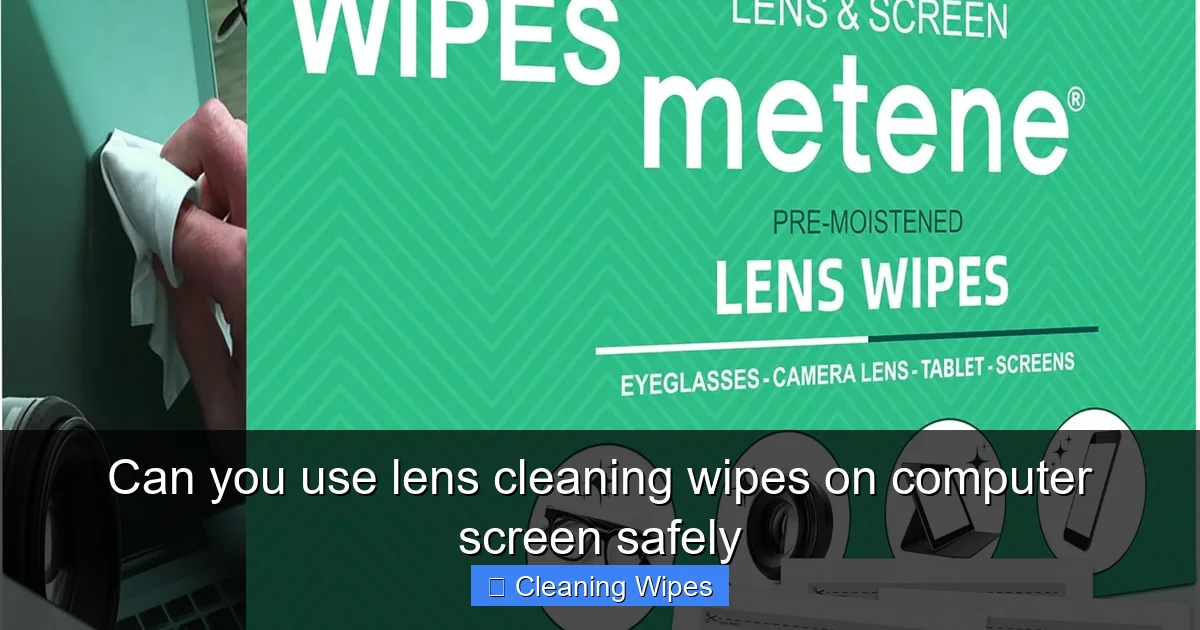
- Safe for electronics or screens: The best wipes clearly say they are safe for monitors, laptops, or screens.
- Alcohol-free: For most modern screens, alcohol-free wipes are safer, especially for anti-glare coatings.
- No ammonia or strong solvents: Ammonia can strip coatings and cause clouding over time.
If the label only mentions glasses or camera lenses and says nothing about screens, be cautious. Glasses lenses are often more resistant than some screen coatings.
2. Type of Screen You Have
Whether you can use lens cleaning wipes on computer screen surfaces also depends on your device type.
- Modern LCD/LED monitors: Use only alcohol-free, ammonia-free, screen-safe wipes.
- Laptops with matte or anti-glare screens: Very sensitive to chemicals; gentle wipes only.
- Glossy screens with coatings: Coatings can wear down with repeated alcohol use.
- Older glass CRT monitors (rare now): These are more durable, but still avoid harsh chemicals and ammonia.
3. Manufacturer Recommendations
To be extra safe, check the cleaning section in your device’s manual or the manufacturer’s website. Many brands give clear instructions. They often say:
- Use a soft, lint-free cloth.
- Use water or a screen-safe cleaner.
- Avoid ammonia, acetone, and strong alcohol.
If the manual warns against alcohol, do not use alcohol-based lens wipes on that screen.
How to Test a Lens Cleaning Wipe Before Using It Fully
If you still wonder, “Can you use lens cleaning wipes on computer screen surfaces without risk?” you can do a small test first.
Step 1: Turn Off and Unplug the Device
Always turn off your computer and unplug it. For laptops, shut it down and unplug the charger. This makes smudges easier to see and reduces the chance of damage.
Step 2: Test on a Small Hidden Area
Open one lens cleaning wipe and gently wipe a tiny corner of the screen, near the edge or bezel. Do not press hard.
Step 3: Wait and Inspect
Let the area dry for a minute. Then look closely:
- Is the area cloudy or dull?
- Do you see streaks that will not wipe off?
- Does the coating look different from the rest of the screen?
If you see any change, stop using that wipe on your computer screen. If it looks clear and normal, the wipe is likely safe for that screen when used gently.
Step-by-Step: How to Use Lens Cleaning Wipes on a Computer Screen Safely
Now let’s go through the safe method. This section will help you use lens wipes correctly so you do not scratch or damage your screen.
Step 1: Power Down and Prepare Your Workspace
Before you use any lens cleaning wipes on computer screen surfaces, always:
- Turn off the computer.
- Unplug the power cable.
- Disconnect any external cables if they are in the way.
Work in a clean, dust-free area if possible. Avoid direct sunlight, because it can make streaks harder to see as you clean.
Step 2: Remove Loose Dust First
Do not go straight in with a wet wipe on a dusty screen. Dust can act like sandpaper.
- Use a soft, dry microfiber cloth to gently wipe away loose dust.
- Or use a clean air blower (like the ones for camera lenses) to blow dust off.
This simple step reduces the risk of micro-scratches when you use the lens cleaning wipes on computer screen surfaces.
Step 3: Open a Fresh Lens Cleaning Wipe
Use a single, individually wrapped wipe. Make sure it is:
- Alcohol-free (if you have a coated or modern screen).
- Marked safe for screens or electronics if possible.
Do not use a dry or partially dried-out wipe. A nearly dry wipe can drag and cause streaks or pressure on the screen.
Step 4: Wipe Gently in One Direction
Using lens cleaning wipes on computer screen surfaces should always be gentle.
- Start at the top of the screen.
- Wipe in straight lines from top to bottom or side to side.
- Use light pressure. Do not press hard or scrub.
If you prefer, you can also use small, gentle circular motions on stubborn spots, but keep your touch very light.
Step 5: Focus on Smudges and Fingerprints
For oily fingerprints or smears:
- Lightly go over the area a few times with the wipe.
- Do not keep rubbing one spot with force.
- If the spot does not come off easily, let the area dry and try again once more.
If the smudge is still there, it may be under a screen protector or may need a different cleaner. Do not keep scrubbing, as this can damage the surface.
Step 6: Let the Screen Air Dry
After you have used lens cleaning wipes on computer screen areas, let the screen dry on its own for a minute or two.
- Do not wipe immediately with a dry cloth unless you see clear streaks.
- If streaks appear after drying, you can gently buff them with a clean, dry microfiber cloth.
Step 7: Inspect the Screen Before Powering On
Look at the screen from different angles:
- Check for streaks, hazy spots, or dull patches.
- If everything looks clear, you are safe to power your computer back on.
If you notice any unusual cloudiness, stop using that brand of lens wipe in the future.
Common Mistakes to Avoid When Using Lens Wipes on Screens
Knowing what not to do is just as important as knowing how to do it right. These mistakes can damage your screen over time.
Using Harsh Chemicals
Never use these on your screen:
- Window cleaner with ammonia.
- Multi-purpose household cleaners.
- Acetone or nail polish remover.
- Bleach or disinfectant sprays not made for screens.
Even if you can use lens cleaning wipes on computer screen surfaces, you should avoid any wipe that lists strong solvents or ammonia.
Using Paper Towels or Tissues
Paper towels, napkins, and facial tissues can scratch your screen. They may feel soft, but they contain fibers that are too rough for delicate coatings.
Always pair your lens cleaning wipes with a soft microfiber cloth if you need to buff the screen after cleaning.
Spraying Liquid Directly on the Screen
If you use a liquid screen cleaner along with lens wipes, never spray it directly onto the screen. Liquid can run down into the bezel and reach internal parts.
Instead, spray onto a cloth first, then wipe the screen.
Cleaning While the Screen Is Hot
Do not clean a screen that is warm or has been on for a long time. The warmth can make liquid evaporate too fast and leave more streaks. Always cool it down first.
Alternatives to Lens Cleaning Wipes for Computer Screens
If you are not sure whether you can use lens cleaning wipes on computer screen surfaces, there are safe alternatives.
Microfiber Cloth and Distilled Water
This is one of the safest and cheapest methods.
- Use a clean, soft microfiber cloth.
- Lightly dampen a corner with distilled water (not tap water, which can leave mineral spots).
- Wipe gently, then dry with a second clean cloth.
Screen-Specific Cleaning Sprays
Many brands sell cleaners labeled for monitors, laptops, and TV screens.
- Check that they are alcohol-free and ammonia-free.
- Spray on the cloth, not on the screen.
- Wipe gently, as with lens wipes.
Pre-Moistened Screen Wipes
These are like lens wipes but made specifically for screens.
- Look for “safe for LCD/LED/OLED” on the label.
- These are often the best choice if you clean screens often.
Troubleshooting: What If Something Goes Wrong?
Even when you think you can use lens cleaning wipes on computer screen surfaces safely, problems can happen. Here is how to handle common issues.
Problem: Streaks After Cleaning
If your screen looks streaky after using lens wipes:
- Let it dry fully first.
- Use a clean, dry microfiber cloth to gently buff in straight lines.
- If streaks remain, lightly dampen the cloth with distilled water and wipe again.
Problem: Cloudy or Dull Patch
If a small area looks cloudy or dull after cleaning:
- Stop using that wipe brand right away.
- Try gently wiping with a slightly damp microfiber cloth and water to see if it improves.
- If the patch does not change, the coating may be damaged.
In that case, avoid further chemical cleaners and consider contacting the device manufacturer for advice.
Problem: Wipe Left Lint or Fibers
If the lens wipe sheds fibers on the screen:
- Use a dry microfiber cloth to gently remove them.
- Next time, choose a higher-quality wipe that is truly lint-free.
How Often Should You Clean Your Computer Screen?
Even if you can use lens cleaning wipes on computer screen surfaces safely, you do not need to clean them every day.
- Light use (home, casual): Wipe every 1–2 weeks or when you see obvious smudges.
- Heavy use (office, shared spaces): Wipe once or twice a week, using gentle methods.
- Dusty environments: Dust with a dry microfiber cloth more often, and use wet wipes only when needed.
Over-cleaning with chemicals, even gentle ones, can wear coatings over many years. Use the mildest method that gets the job done.
Best Practices to Keep Your Screen Cleaner for Longer
If you reduce how dirty your screen gets, you will not have to ask as often whether you can use lens cleaning wipes on computer screen surfaces.
- Avoid touching the screen with your fingers.
- Do not point at the screen with pens or sharp objects.
- Keep drinks and food away to prevent splashes.
- Close your laptop when not in use to protect the screen.
- Use a screen protector if you often touch the display.
Conclusion: Can You Use Lens Cleaning Wipes on Computer Screen Safely?
You now know that the answer to “Can you use lens cleaning wipes on computer screen safely?” is: yes, you can, but only under the right conditions.
Use wipes that are alcohol-free, ammonia-free, and ideally labeled safe for screens. Always turn off and unplug your device, remove dust first, and wipe gently with light pressure. If you are unsure, test on a small corner or choose safer options like microfiber cloths and screen-specific cleaners.
With the right products and a careful method, you can keep your computer screen clear, bright, and safe from damage for years to come.