
Resetting your Shark robot vacuum is a simple process that can resolve many common issues. This guide provides clear, step-by-step instructions for both soft and factory resets on various Shark models. You’ll also learn when to use each method and how to troubleshoot if problems persist.
Contents
- 1 Key Takeaways
- 2 Learn How to Reset Your Shark Robot Vacuum Easily
- 3 Why Would You Need to Reset Your Shark Robot Vacuum?
- 4 First Step: The Simple Power Cycle (Soft Reset)
- 5 How to Perform a Full Factory Reset
- 6 Resetting Specific Shark Robot Models
- 7 Troubleshooting Common Reset Problems
- 8 How to Maintain Your Vacuum and Avoid Frequent Resets
- 9 Conclusion: A Fresh Start for Your Cleaner Home
- 10 Author
Key Takeaways
- Identify the Reset Type Needed: A soft reset often fixes minor glitches, while a factory reset is for major issues or preparing the vacuum for a new owner.
- Power Cycle First: Always try turning the vacuum off and on again as a first, simple troubleshooting step before attempting a full reset.
- Follow Model-Specific Steps: The reset process can vary slightly between Shark AI, ION, and older robot models; check your manual for exact button locations.
- Re-pair to the App After Factory Reset: A factory reset will erase all settings, requiring you to set up the vacuum in the SharkClean app again as if it were new.
- Preserve Your Maps (If Possible): Be aware that a factory reset will typically delete any smart maps your vacuum has created for efficient cleaning.
- Check Indicator Lights: The vacuum’s lights provide crucial feedback during and after the reset process to confirm success or indicate errors.
Learn How to Reset Your Shark Robot Vacuum Easily
Is your Shark robot vacuum acting up? Maybe it’s not connecting to Wi-Fi. Or perhaps it’s stuck in an error loop. Don’t worry. A simple reset is often the fastest fix. This guide will walk you through every step. You’ll learn how to reset your Shark robot vacuum safely and effectively. We cover all the main methods. From a quick reboot to a full factory reset. Let’s get your helper back to cleaning!
Why Would You Need to Reset Your Shark Robot Vacuum?
Think of a reset like a fresh start for your vacuum’s brain. Over time, small software glitches can happen. A reset clears these out. It’s a common fix for several problems.
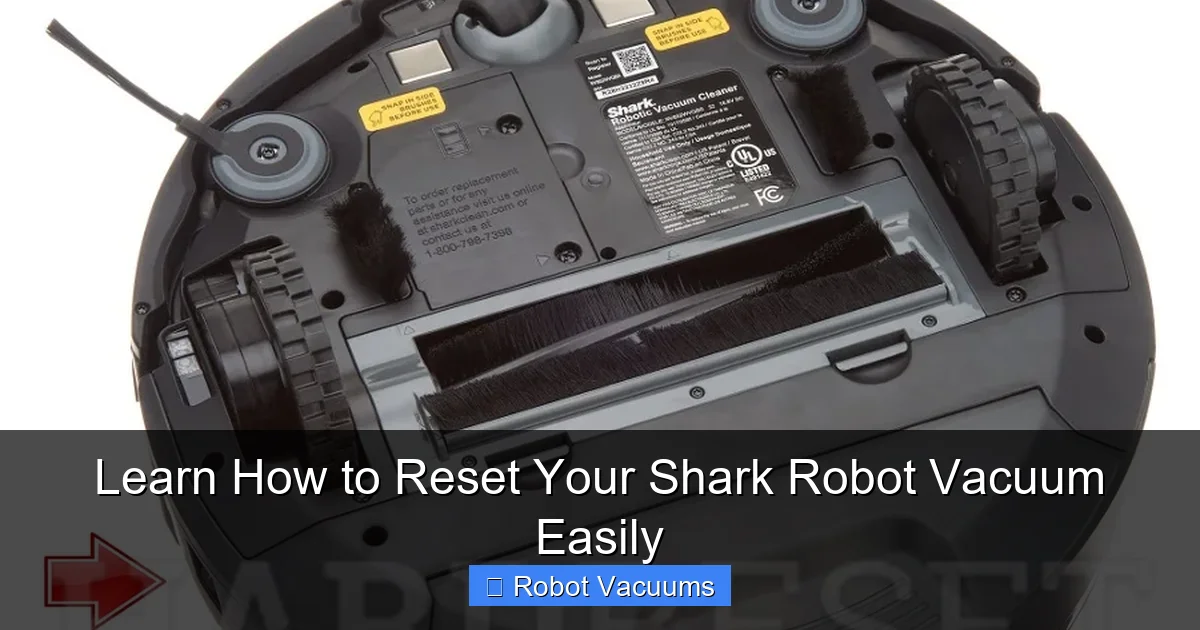
Visual guide about Learn How to Reset Your Shark Robot Vacuum Easily
Image source: hardreset.info
- Wi-Fi Connection Issues: If your vacuum won’t connect to the app or keeps dropping off the network.
- Unresponsive Behavior: The vacuum doesn’t start, stops mid-clean, or doesn’t respond to buttons.
- Error Messages: Persistent error lights or codes that won’t go away.
- Poor Performance: Strange navigation, missed spots, or getting lost frequently.
- Preparing for a New Home: You’re selling or giving away your vacuum and need to wipe your data.
Before a full reset, always try the simplest solution first: a power cycle.
First Step: The Simple Power Cycle (Soft Reset)
This is the easiest method. It’s like restarting your computer. It fixes minor glitches without deleting your settings or maps.

Visual guide about Learn How to Reset Your Shark Robot Vacuum Easily
Image source: innobytech.com
How to Perform a Power Cycle
Follow these three easy steps.
Step 1: Turn Off the Vacuum. Pick up your robot vacuum. On its underside, you will find the power switch. Slide it to the “OFF” (0) position.
Step 2: Unplug the Dock. Go to the charging dock. Pull the power adapter plug from the wall outlet. This ensures the system is completely without power.
Step 3: Wait and Restart. This is the key part. Wait for a full 60 seconds. This allows any leftover power in the circuits to drain. After one minute, plug the dock back in. Then, flip the robot’s power switch back to “ON” (I). Place it on the dock to charge.
Test your vacuum. If it works normally, you’re done! If the problem continues, a deeper reset may be needed.
How to Perform a Full Factory Reset
A factory reset returns your Shark robot to its original out-of-the-box state. Warning: This will erase all your data. This includes Wi-Fi passwords, cleaning schedules, and any smart mapping history. You will need to set it up in the SharkClean app again. Use this for stubborn problems or before giving the vacuum away.
Visual guide about Learn How to Reset Your Shark Robot Vacuum Easily
Image source: i.ytimg.com
The process is similar for most Shark AI and ION robot models.
Step-by-Step Factory Reset Instructions
Step 1: Locate the Reset Button. Turn your vacuum over. Look for a small, recessed button. It is often near the side brush or the wheels. You might need a paperclip or SIM eject tool to press it. The button is usually labeled “RESET.”
Step 2: Initiate the Reset. With the vacuum powered ON and off the dock, press and hold the reset button with your tool. Hold it for 10-15 seconds. You will see the vacuum’s lights flash or hear a sound. This indicates the reset has begun.
Step 3: Confirm and Reboot. Release the button. The vacuum will turn off. Wait a moment, then press the main “CLEAN” or power button on top to turn it back on. All lights should flash in a sequence, confirming the reset is complete.
Step 4: Reconnect to the App. Open your SharkClean app. Go to add a new device. Follow the in-app instructions to reconnect your robot to Wi-Fi and set up your preferences from scratch.
Resetting Specific Shark Robot Models
While the principles are the same, button locations can vary. Here’s a quick model guide.
Shark AI Robot Series (AV, UR, etc.)
These models have a clear reset pinhole on the underside. The process is exactly as described in the factory reset section above. After resetting, you will hear a voice prompt saying “Wi-Fi reset” or something similar.
Shark ION Robot Series (S, V, etc.)
Older ION models might use a combination of buttons. Try this: Press and hold the “DOCK” and “MAX” buttons on top of the robot simultaneously for about 10 seconds until the light ring flashes. Refer to your model’s manual for the most accurate method.
Shark IQ Robot Series
The Shark IQ robot often uses the recessed reset button method. For some, you may need to hold the “CLEAN” button and the “RESET” pinhole button together. Check your user guide for the definitive steps.
Troubleshooting Common Reset Problems
What if the reset doesn’t work? Don’t panic. Try these tips.
- Vacuum Won’t Power On After Reset: Ensure it’s placed correctly on the charging dock. The metal contacts on the robot and dock must be clean and touching. Leave it to charge for at least 3 hours before trying again.
- Reset Button Doesn’t Seem to Work: Make sure you are using a thin, straight tool to press the button firmly. Hold it for the full duration. The vacuum must have some battery charge to perform the reset.
- App Won’t Reconnect After Factory Reset: Delete the old robot from your SharkClean app first. Then, ensure your phone is connected to your home’s 2.4GHz Wi-Fi band (robot vacuums typically don’t connect to 5GHz). Restart your phone and router.
- Error Lights Persist: Consult your manual for the specific error light code. It could indicate a hardware issue like a stuck wheel or clogged brush that a reset cannot fix.
How to Maintain Your Vacuum and Avoid Frequent Resets
Prevention is better than cure. Regular care keeps your robot running smoothly.
- Empty the Bin Frequently: Don’t wait for it to be completely full. A full bin can cause sensors to malfunction.
- Clean Sensors and Charging Contacts: Wipe the cliff sensors and the metal charging pins on the robot and dock weekly with a dry cloth.
- Clear Brush and Wheel Debris: Regularly remove hair and string wrapped around the brushes and wheels. This prevents motor strain and navigation errors.
- Keep Software Updated: When connected to the app, allow firmware updates to install. These often include bug fixes and improvements.
Conclusion: A Fresh Start for Your Cleaner Home
Learning how to reset your Shark robot vacuum is a powerful skill. It saves you time, money, and frustration. Remember to start with the gentle power cycle. Move to a factory reset only for bigger issues. Always check your model’s manual for the most precise instructions. With this guide, you can confidently tackle connection problems, error codes, and sluggish performance. Your helpful little cleaning robot will be back to zipping around your floors in no time, keeping your home spotless with minimal effort on your part.
🎥 Related Video: How To Reset Your Shark Robot Vacuum (How Do I Factory Reset My Shark Robot Vacuum?)
📺 The Savvy Professor
How To Reset Your Shark Robot Vacuum (How Do I Factory Reset My Shark Robot Vacuum?). In this video tutorial I will show you …